

There is a specific version of this problem that has nothing to do with placement, interference or your devices, and it is worth ruling in before you start moving the router around the house. On one particular build, the wireless radios simply vanish. Not weak signal, not dropouts. Gone, with no wireless settings left in the web interface at all.
Firmware is the software baked into the router. A hardware version (V1, V1.20, V2, V3) is a physical revision of the same model, and TP-Link ships different firmware for each one. That distinction is the whole story here, because the bad build only affects one of them.
Why did my Archer AX10 Wi-Fi disappear after a firmware update?
Because of a defect TP-Link acknowledged in a highlighted support thread. On 6 January 2023, TP-Link staff posted a notice titled Wireless signal may disappear after upgrading Archer AX10/AX1500 V1 firmware to 1.3.3 Build 20220815. The specifics matter:
- The broken build is 1.3.3 Build 20220815 Rel. 43063.
- It affects Archer AX10 and Archer AX1500, hardware version V1 only. TP-Link states it does not apply to V1.20 or V2.0.
- Both bands disappear, 2.4 GHz and 5 GHz, and affected users found no wireless settings at all when they logged into the web management page.
TP-Link pulled that image from its cloud update server. Users who kept seeing it offered in the Tether app or the web interface after the withdrawal were told to ignore it.
Which firmware version actually fixes it?
Archer AX10_V1_1.3.4 Build 20230220, released publicly and confirmed by TP-Link staff in an update to that thread on 7 April 2023. The AX1500 equivalent is Archer AX1500_V1_1.3.4 Build 20230220. The full release string is 1.3.4 Build 20230220 Rel. 71494(4555), and the release note describes it as improving system stability.
| Firmware | Hardware | Status | What to do |
|---|---|---|---|
| 1.3.1 Build 20220401 | V1 | Known good, pre-bug | Safe rollback target |
| 1.3.3 Build 20220815 Rel. 43063 | V1 | Broken, withdrawn by TP-Link | Do not install |
| 1.3.3 Build 20230106 Beta | V1 | Interim beta, since struck from the notice | Skip it |
| 1.3.4 Build 20230220 | V1 | Official fix | Install this |
| 1.3.3 Build 20260616 | V3.6 | Current, unrelated to the bug | Fine for V3.6 hardware |
Read that last row carefully, because it is the trap. Version 1.3.3 also exists for hardware V3.6 as Build 20260616, published 8 September 2026, and it has nothing to do with the V1 defect. A version number alone tells you nothing. The build number and the hardware version together are what identify a firmware image.
How do I check my hardware version and firmware build?
Do this before you download anything. Installing firmware built for a different hardware revision is how a working router becomes a brick.
- Turn the router over and read the label on the underside. The hardware version is printed there, usually as Ver 1.0, Ver 1.20, Ver 2.0 or Ver 3.0.
- Translate it using TP-Link’s own shorthand. The download page states that Vx.0 equals Vx.6 and Vx.8, and Vx.x0 equals Vx.x6 and Vx.x8. So a label reading V1.0 covers V1.6 and V1.8 images.
- Log into the router at tplinkwifi.net or 192.168.0.1 and open Advanced, then System Tools, then Firmware Upgrade, to read the currently installed version and build.
- Go to the Archer AX10 download page and select your exact hardware version from the dropdown. The page offers V1, V1.20, V2, V2.60, V3 and V3.60 separately.
- Match the region too. One user in that thread found the EU image rejected on a US unit with a Wrong file type error; the US build installed without complaint. Download from your regional TP-Link site.
- Apply the file through System Tools, then Firmware Upgrade, and leave the router alone until it finishes rebooting.
What if the wireless is already gone and I cannot get in?
You can still reach the web interface over an Ethernet cable even with both radios dead, which is how people recovered from this. Plug a laptop into a LAN port, open tplinkwifi.net, and upload the firmware manually.
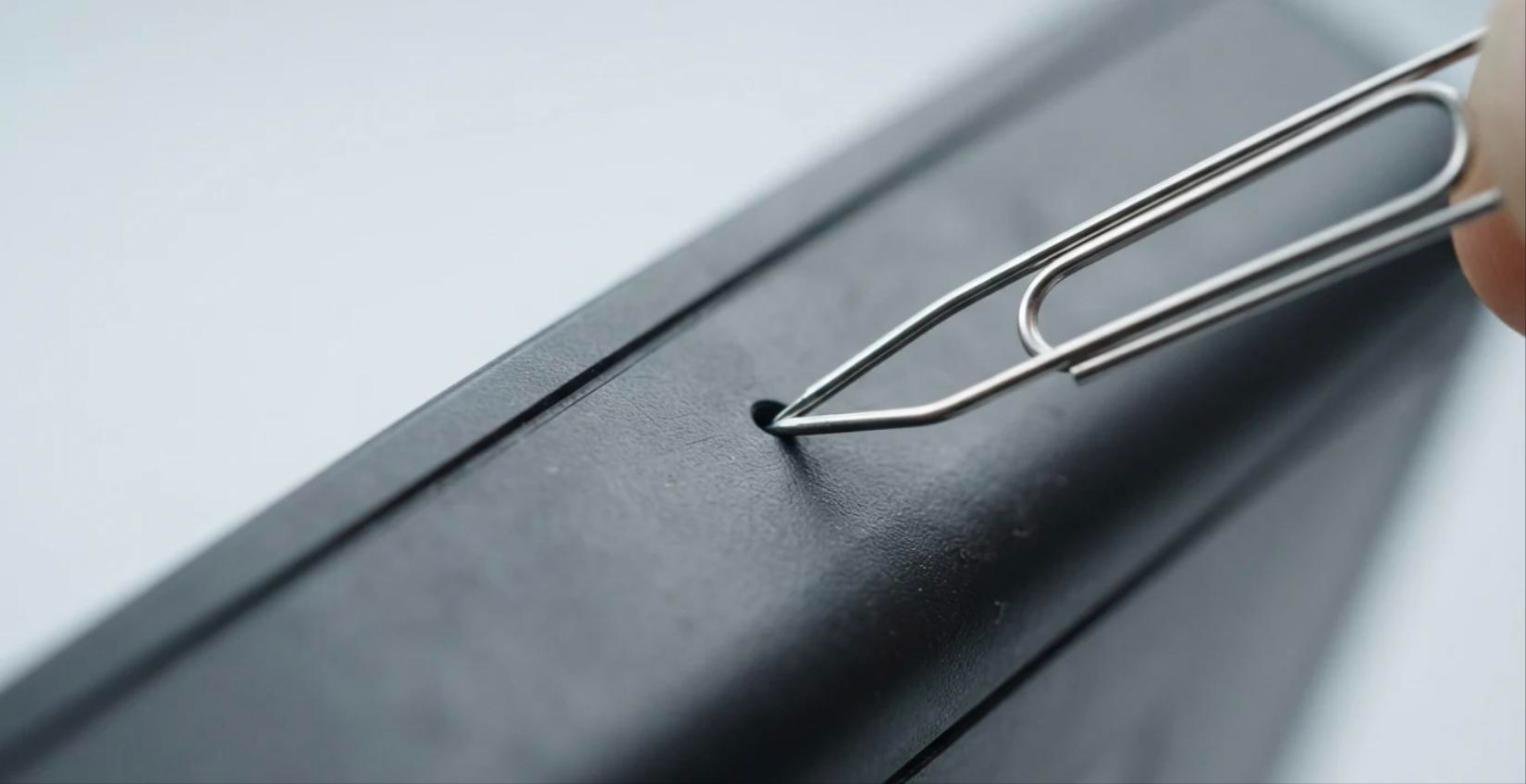
If the interface is unresponsive, do a hardware reset. TP-Link support advised holding the reset button for about 10 seconds until the power LED flashes. That wipes your settings, so you will reconfigure the SSID and password afterwards, but it costs nothing to try before you conclude the unit is dead.
Only the 5 GHz band is missing. Is that the same bug?
No, and this is where the honest answer is less satisfying. If 2.4 GHz works and only 5 GHz is absent, you are looking at a different problem, and it does not have a confirmed fix.
A separate AX10 thread from 3 November 2022 describes exactly this on firmware 1.3.1 Build 20220401: the 5 GHz SSID appears after a factory reset, then disappears again across a PC, an iPhone 8, an iPhone 11 and a MacBook Air, all of which could still see other 5 GHz networks nearby. Suggestions were to disable Smart Connect, give each band its own SSID, and move the 5 GHz channel to 36, 44 or 48. The original poster tried those channels and reported no improvement. The thread was locked with no resolution.
Those suggestions are still the right first moves, and the reasoning behind the channel advice is sound. Channels in the U-NII-2A and U-NII-2C ranges require DFS, radar detection, which can take the band off the air while the router listens and can make a network invisible to clients that handle DFS poorly. Channels 36 to 48 avoid that entirely. TP-Link’s own guidance also notes that channel 165 only works at a 20 MHz channel width.
Two more things worth eliminating, from TP-Link’s Wi-Fi network not showing up guide, updated 23 April 2026: confirm Hide SSID is switched off, since a hidden network must be added manually on every device, and confirm the channel is one your region permits, as clients will not display a channel outside their regulatory domain.
Does updating to the newest firmware always help?
Not on this router, and here is my actual opinion: on an AX10 V1, I would not chase the newest build. I would get to 1.3.4 Build 20230220 and stop there until I had a concrete reason to move.
The thread itself supports that caution. One user reported Wi-Fi still missing on EU builds 1.3.8 Build 20230619 and 1.3.9 Build 20230728 in March 2024, and recovered by rolling back to 1.3.4 Build 20230220. Another reported instability and constant drops after moving to 1.3.4. Neither report was reproduced or confirmed by TP-Link, so treat them as signals rather than facts, but the pattern is clear enough that blind automatic updating on ageing V1 hardware is a bad default. What I would not recommend to anyone is installing a beta image to solve a stability problem. Betas are how you acquire a second, less documented bug.
If your connection is poor rather than absent, that is a different investigation. Measure before you tinker: run a free internet speed test wired and then wireless, and compare. The gap between the two tells you whether the router is the problem at all. For context on what numbers you actually need, see how much internet speed working from home really requires, and for latency rather than throughput, the fixes in our guide to high ping in PUBG Mobile apply to any router.
What this guide cannot tell you
- The source material is ageing. TP-Link’s notice dates from January 2023 and its last reply is from March 2024. Firmware released since then is not covered by it.
- The 5 GHz-only fault is unresolved. No confirmed fix exists in the threads reviewed. If channels 36 to 48 and disabling Smart Connect do not help, the honest next step is a warranty claim, not more setting changes.
- Regional builds differ. US and EU images are not interchangeable, and release timing varies by region, so your available versions may not match the list above exactly.
- Later regressions are user reports only. The 1.3.8 and 1.3.9 complaints come from individual users, not from TP-Link, and were never confirmed.
- Hardware failure looks identical from outside. If a correct firmware image and a full reset both fail, no amount of configuration will fix a dead radio.
Frequently asked questions
Which Archer AX10 firmware causes the Wi-Fi to disappear?
Firmware 1.3.3 Build 20220815 Rel. 43063 on hardware version V1. TP-Link confirmed the defect, withdrew the build from its cloud update server, and released 1.3.4 Build 20230220 as the fix. Hardware versions V1.20 and V2.0 are not affected.
Does this affect the Archer AX1500 as well?
Yes. TP-Link’s notice names the Archer AX10 and the Archer AX1500 together, both on hardware version V1. The fix for the AX1500 is Archer AX1500_V1_1.3.4 Build 20230220, the direct equivalent of the AX10 release.
How do I downgrade my Archer AX10 firmware?
Download 1.3.1 Build 20220401 for your exact hardware version and region from the TP-Link download page, connect to the router over Ethernet, then go to Advanced, System Tools, Firmware Upgrade and upload the file manually. Do not interrupt the router while it reboots.
Why can I only see 1.3.3 as the latest version for my router?
Version numbers repeat across hardware revisions. Version 1.3.3 exists both as the withdrawn V1 build from 2022 and as Build 20260616 for hardware V3.6, published in September 2026. Always compare the build number and hardware version, never the version number alone.
Will a factory reset bring my wireless back?
Sometimes, and it is worth trying. Hold the reset button for about 10 seconds until the power LED flashes. If the radios return but vanish again after a reboot, the firmware is still the problem and you need to change the installed build rather than the settings.
Is it safe to install firmware from a different region?
No. Regional images are not interchangeable. One user in TP-Link’s thread had an EU file rejected with a Wrong file type error on a US unit. Installing a mismatched image can damage the device and void the warranty, so download from your regional TP-Link site.
The short version
Check the label, check the build number, and treat the version number as the least informative thing on the screen. If you are on V1 hardware running 1.3.3 Build 20220815, that single build is your answer, and 1.3.4 Build 20230220 is the way out of it. If only 5 GHz is missing, nobody has a confirmed fix, and you deserve to know that before you spend an evening changing channels.