

You paid good money for your wireless headphones. They sound incredible on your phone. Then you connect them to your PC, join a Discord call or a game lobby, and suddenly everything sounds like it is coming through a tin can at the bottom of a well.
Your headphones are not broken. Your Bluetooth adapter is probably fine too. What you are hearing is a twenty year old limitation in Bluetooth itself, and Windows switching modes behind your back without telling you.
Here is how to confirm that in ten seconds, and the three ways to fix it, ranked by what each one actually costs you.
The ten second check that tells you exactly what is wrong
Before you change a single setting, confirm the diagnosis. With your headphones connected and sounding bad:
- Open Settings > System > Sound
- Click your headphones under Output
- Look at the Format line
If it reads something like 1 channel, 16 bit, 16000 Hz, you have found your answer. That is mono, at roughly the sample rate of a landline telephone call. Healthy stereo audio should read 2 channel, 16 bit, 48000 Hz.
If the Format line already looks correct and the sound is still bad, skip to the troubleshooting section near the end, because you have a different problem.
Why Windows does this to you
Classic Bluetooth cannot carry high quality stereo audio and microphone audio at the same time. It has to pick one of two profiles:
- A2DP gives you full stereo, high fidelity, and no microphone at all.
- HFP, the Hands-Free Profile, gives you a working microphone, but drops playback to mono at a much lower sample rate.
Only one of them can run at a time. So the instant anything on your PC opens the microphone, Windows quietly drops your headphones out of stereo and into hands-free mode. Your game audio, your music, your film, all of it collapses to telephone quality.
The cruel part is that it does not take an actual phone call to trigger it. A browser tab that requested microphone access, a game checking for a voice device at launch, a chat app sitting in your system tray, any of these is enough. And Windows does not always switch back when the app is finished.
This one is not Microsoft’s fault, for once. It is a limitation baked into Classic Bluetooth.
Fix 1: Turn off Hands-Free Telephony, and what it costs you
This is the fix every forum thread recommends. It works, but be clear about the trade you are making before you do it.
- Open Settings > Bluetooth & devices > Devices
- Scroll to the bottom and click More devices and printer settings
- Right click your headphones and choose Properties
- Open the Services tab
- Untick Hands-free Telephony
- Click OK, then power your headphones off and back on
Your headphones can now never drop into mono, because the profile that does it no longer exists as far as Windows is concerned.
The cost: your headphone microphone stops working entirely. Not degraded, gone. If you take calls, play multiplayer games with voice chat, or sit in Teams meetings on this PC, this fix trades one problem for a worse one.
It is the right answer if you only ever listen on these headphones and talk through something else, or not at all. It is the wrong answer if you talk to anyone.
Fix 2: Give Windows a different microphone
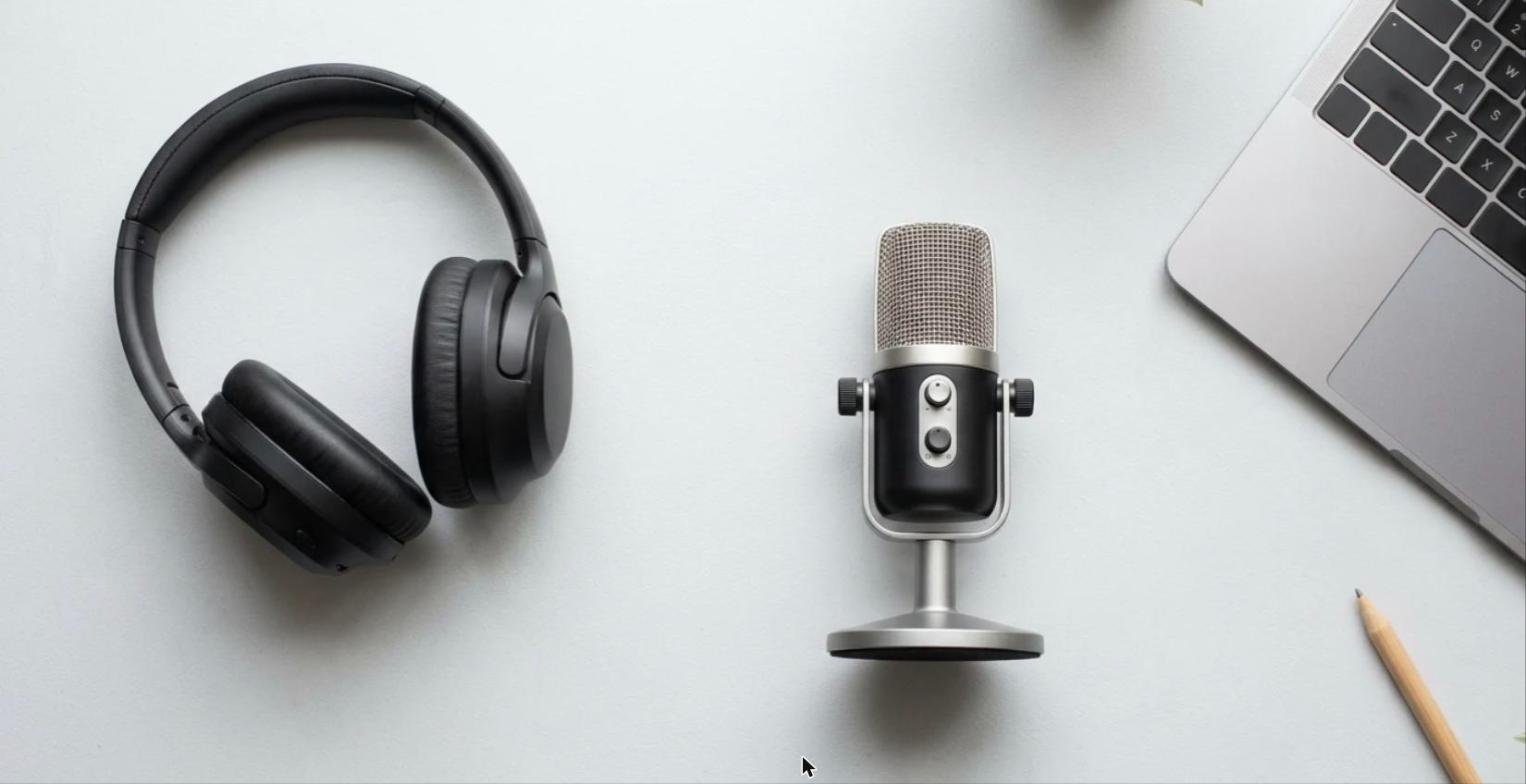
This is the fix most people should actually use, and it is almost never mentioned.
The profile switch is triggered by something opening your headset’s microphone. If Windows has another microphone available and your apps use that one instead, your headphones are never asked to carry voice, so they stay in stereo permanently.
- Connect any other microphone: a cheap USB mic, your webcam’s mic, even your laptop’s built in array
- Open Settings > System > Sound
- Under Input, select that microphone as the default
- In Discord, Teams, OBS or your game, set the input device explicitly rather than leaving it on Default
Setting it per app matters. Plenty of apps ignore the Windows default and grab the headset microphone anyway, which puts you right back where you started.
You keep full stereo, you keep a working microphone, and you usually end up sounding better to other people too, because almost any standalone mic beats a headset mic squeezed through Bluetooth.
Fix 3: Switch to LE Audio, which removes the trade-off entirely
Bluetooth LE Audio is the newer standard that replaces A2DP and HFP with profiles that carry media and voice together. It uses a codec called LC3 that is efficient enough to do both at once.
Microsoft’s implementation is called super wideband stereo. With it, your headset keeps stereo playback at a 32 kHz sample rate while the microphone is live. Joining a game chat no longer causes the audio to fall off a cliff.
What you need for it to work
This is the catch, and it is a real one. All four of these have to line up:
- Windows 11 version 24H2 or newer
- A PC with Bluetooth LE support built in from the factory. A plug in USB dongle generally will not do it
- Manufacturer drivers that support LE Audio with stereo. Check your PC maker’s support page, not Windows Update
- Headphones or earbuds that support LE Audio. Most sets sold before roughly 2023 do not
How to turn it on
- Open Settings > Bluetooth & devices > Devices
- Look for Use LE Audio when available and switch it on
- Go to Settings > System > Sound and select your headphones
- Find Format when microphone is active and set it to Stereo (2 channels)
If the LE Audio toggle is not there at all, one of the four requirements above is not met. The toggle only appears when your hardware and drivers can actually do it.
The 48 kHz option now being tested
In a Windows 11 Insider preview build released on 20 November 2026, Microsoft added a 48 kHz stereo format that stays available while the microphone is active, up from the current 32 kHz.
It needs a PC that already supports super wideband stereo and an LE Audio headset capable of 48 kHz playback. Worth knowing about, but it is still in testing, so do not count on it on a normal production install yet.
What if the sound is bad with no call running at all?
If your Format line already reads 2 channel, 48000 Hz and things still sound wrong, the profile switch is not your problem. Work through these instead:
- Set the format manually. In Sound settings, set the output format to 16 bit, 48000 Hz, 2 channel. Odd sample rates cause odd results
- Update the Bluetooth driver from your PC manufacturer. Windows Update ships generic Bluetooth drivers that are often older and less capable than the vendor’s own
- Check the distance and what is in the way. Bluetooth runs on 2.4 GHz, the same crowded band as your Wi-Fi, your wireless mouse dongle and your microwave. A PC tower tucked under a metal desk is a genuinely bad place for a Bluetooth radio
- Turn off audio enhancements. In the device properties, disable any spatial audio or enhancement effects and test again
- Test on your phone. If it sounds bad there too, the problem is the headphones, not Windows
Should you disable the Hands-Free device in Device Manager instead?
You will see this suggested: open Device Manager, find the entry with “Hands-Free” in its name under audio devices, and disable it.
It has the same effect as unticking Hands-free Telephony, with the same cost to your microphone, and it tends to come back after driver updates. There is also a side effect worth knowing about: on many headsets, disabling it stops Windows reporting the battery level.
If you want this outcome, use the Services tab method in Fix 1. It is cleaner and it sticks.
Quick reference
- Sound collapses the moment a call or game chat starts – use Fix 2, a separate microphone, or Fix 3 if your hardware supports LE Audio
- You never use the headset mic anyway – use Fix 1, untick Hands-free Telephony
- Sound is poor even with nothing using the mic – set the format to 48000 Hz 2 channel and update the Bluetooth driver from your PC maker
- Modern PC and modern headset – turn on LE Audio and set Format when microphone is active to Stereo
Working through other Windows audio and hardware problems? We have guides on fixing the Sony WH-1000XM4 microphone on Windows, on the Logitech driver that blocks Memory Integrity, and on stopping a Samsung Odyssey G5 from flickering.
Frequently asked questions
Why do my Bluetooth headphones sound muffled only on my PC?
Because something on your PC has opened the headset microphone, which forces Bluetooth out of stereo A2DP and into mono Hands-Free Profile. Your phone usually only does this during an actual call, so you never notice it there.
Should I turn off Hands-Free Telephony?
Only if you never use the headset’s microphone. It permanently restores stereo quality, but it disables the microphone completely. If you take calls or use voice chat, set a different microphone as your input device instead.
Does LE Audio actually fix it?
Yes, properly. LE Audio carries voice and stereo media together, so there is no profile to switch between. It needs Windows 11 version 24H2 or newer, a PC with factory Bluetooth LE support and vendor drivers, and headphones that support LE Audio.
Will a better Bluetooth dongle fix the problem?
Usually not. The profile limitation is in Classic Bluetooth itself, not in the adapter’s quality. A plug in USB dongle also generally cannot give you Windows super wideband stereo, which requires LE support integrated into the PC.
Why does the sound stay bad after I close the app that was using the mic?
Windows does not always switch the profile back on its own. Disconnecting and reconnecting the headphones usually restores stereo. If it happens constantly, apply Fix 2 or Fix 3 so that it cannot happen at all.