

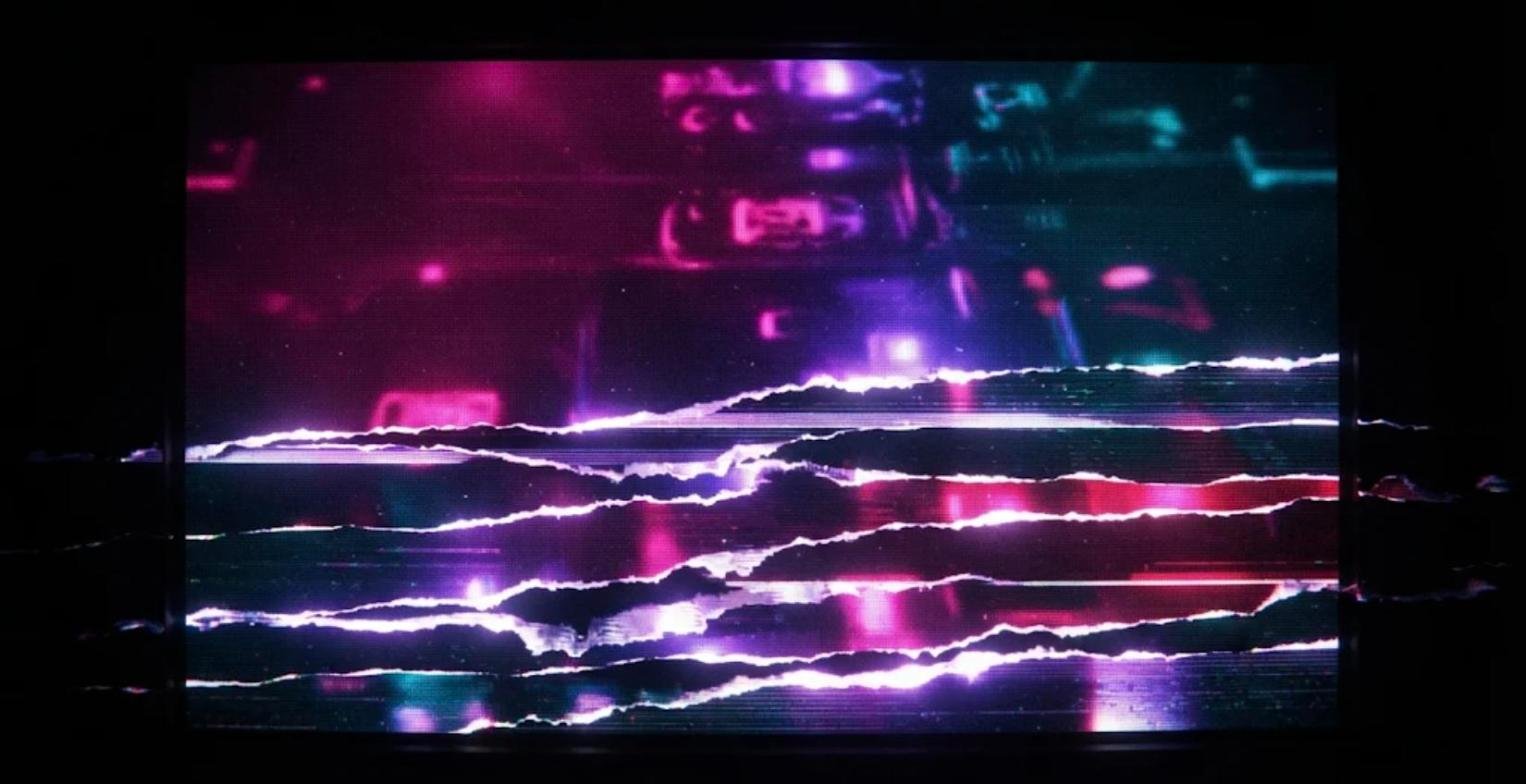
The screen dips for a second and comes back. Or a band of brightness crawls down the panel. Or it goes fully black mid-game and returns as if nothing happened. You swap the cable, reseat it, update the driver, and it keeps happening.
Samsung community threads on this run to dozens of pages across several G5 sizes, and the same handful of fixes surface again and again. Here they are, in the order worth trying, with honest notes on what each one costs you.
Why does the Odyssey G5 flicker?
The common thread in almost every report is variable refresh rate. FreeSync, Adaptive Sync and G-Sync Compatible all do the same job: they let the monitor change its refresh rate moment to moment to match the frames your GPU produces.
When the frame rate drops near the bottom of the monitor VRR window, the panel has to make large, rapid refresh adjustments. On these panels that shows up as a visible brightness flicker, and at the extreme the link drops entirely and the screen blacks out for a second.
That is why it appears in menus, loading screens and even while scrolling a document, not only during heavy gameplay. One owner reported the worst flickering happened in Microsoft Word, where simply scrolling would trigger it. Those are exactly the moments when frame rate swings most.
Fix 1: turn off Adaptive Sync, as a test
Open the monitor on-screen menu, find FreeSync or Adaptive Sync, and switch it off. Test for an hour.
This is diagnostic, not the destination. A player who spent days chasing flicker across Odyssey monitors found disabling Adaptive Sync removed it completely. If turning it off stops the flicker, you have confirmed the cause and can move to Fix 2 to get most of the feature back.
If the flicker continues with VRR off, skip ahead to the firmware and hardware section. Yours is probably a different problem.
Fix 2: narrow the VRR range instead of disabling it
This is the fix worth the effort, because it keeps variable refresh working.
The flicker happens at the bottom of the range. Raise that floor by a couple of hertz and the panel never reaches the unstable zone. The same user describes changing the range from roughly 39-144Hz to 41-144Hz and the random blackouts stopping.
- AMD cards: open AMD Software, go to Display, then Custom Resolutions, and create one matching your native resolution with the VRR minimum raised a few hertz.
- Nvidia cards: use Nvidia Control Panel, Change Resolution, Customize, Create Custom Resolution. Adjust the timing rather than the resolution.
- Apply it, select the new mode in Windows display settings, and test.
Timing standards matter too. One owner on an RX 7800 XT resolved it by building a custom resolution using the GTF timing standard rather than lowering the frame rate. If the first attempt does not hold, changing the timing standard is the next lever.
Fix 3: change the connection
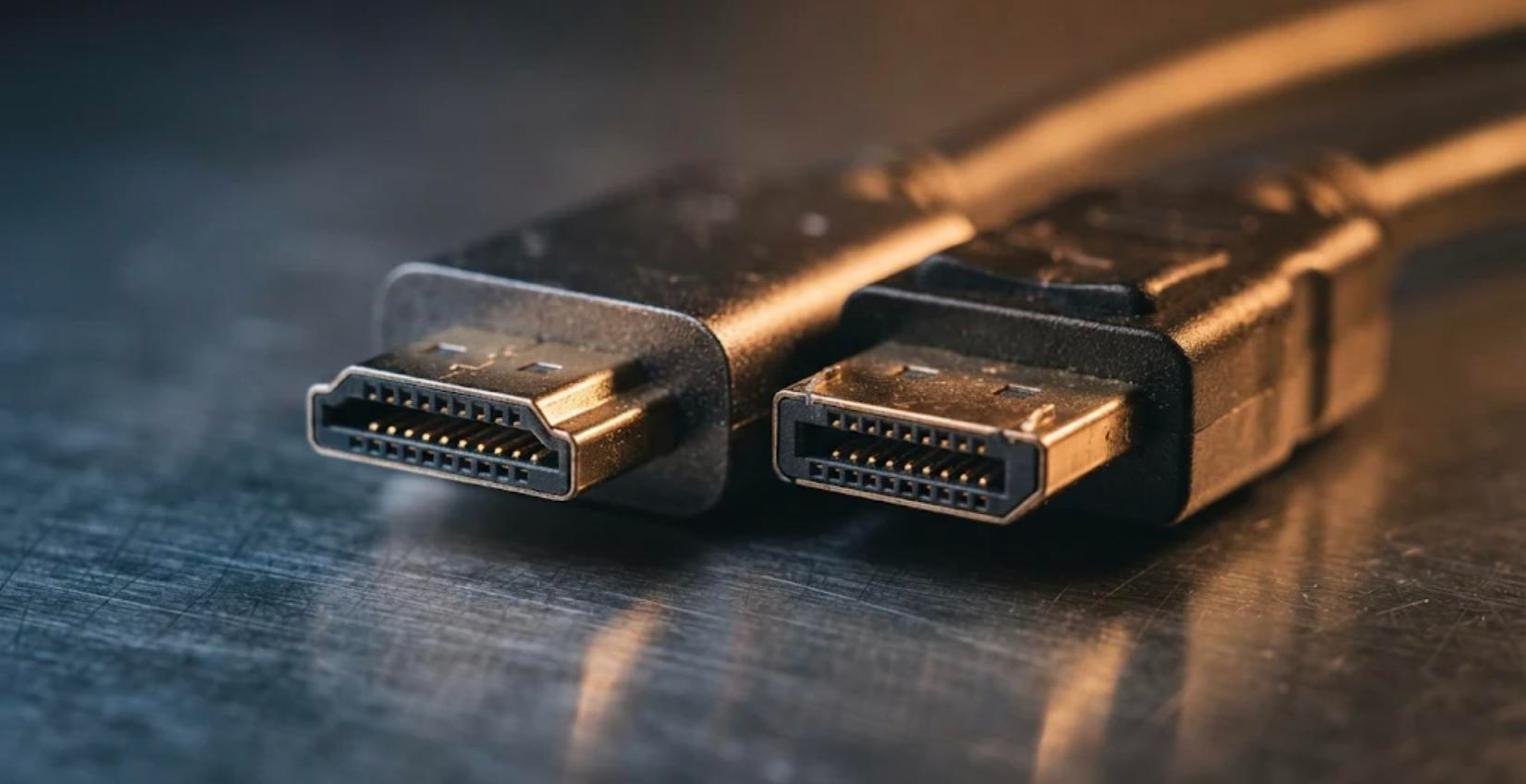
Several owners report the flicker is tied to DisplayPort specifically and disappears over HDMI 2.1. One report on an OLED G8 states the monitor only stops flickering when connected via HDMI 2.1, with refresh rate changes making no difference at all.
Worth trying, with two caveats. Depending on your GPU and the model, HDMI may cap your refresh rate or resolution below what DisplayPort gives you. And this treats the symptom rather than the cause.
Fix 4: check the firmware, carefully
Samsung has shipped firmware aimed at this. Version M-T5534GCPA-1005.3 was released to address flickering on the 34-inch G5, and it is worth confirming you are on the latest build for your exact model.
Set expectations low. Owners have reported having firmware 1007.1 installed while Samsung listed 1005.3 as current on the website, which makes it hard to know what you actually have. Several report updating and seeing no change.
Which fix costs you what
| Fix | Effort | What you give up |
|---|---|---|
| Disable Adaptive Sync | One minute | Variable refresh rate entirely |
| Narrow the VRR range | 15 minutes | A few hertz at the bottom. Usually nothing you notice |
| Switch to HDMI 2.1 | Five minutes | Possibly refresh rate or resolution, depending on the GPU |
| Lower refresh to 120Hz | One minute | The headline feature you paid for |
| Firmware update | 30 minutes | Nothing, but it often changes nothing either |
When it is the panel, not the settings
Some of these units are genuinely faulty, and no setting will help.
Treat it as hardware if the flicker appears on the boot logo before Windows loads, persists with VRR fully disabled, follows the monitor to a different computer and GPU, or arrives alongside dark patches on the panel.
That last one matters. One owner had a G5 repaired with a replaced panel after black spots and brightness flicker, only for the flicker to return later, and a second G5 developed the same fault. Another owner, told by others it is a chronic problem with the model, was sent a replacement monitor rather than a repair.
If you are inside warranty and the symptoms above match, open a claim before spending a weekend on custom resolutions.
What this guide cannot do
Three honest limits.
Narrowing the VRR range is trial and error. There is no correct floor to copy, because it depends on your panel, your GPU and your cable. Expect two or three attempts.
Second, none of this is a repair. VRR flicker on these panels is a characteristic of the hardware, and the fixes work by avoiding the conditions that trigger it. Owners are right to be annoyed that every workaround means downgrading a feature they paid for.
Third, my honest opinion: if you are inside warranty and the flicker is bad enough to notice daily, claim rather than tinker. Reports of replacement units are common enough that it is a reasonable first move, and a weekend of custom resolutions is worth more than the monitor.
Frequently asked questions
Why does my Samsung Odyssey G5 flicker?
In most cases, variable refresh rate. FreeSync and Adaptive Sync change the panel refresh rate to match your frame rate, and at the bottom of that range the panel makes large rapid adjustments that show as brightness flicker or a brief blackout.
Does turning off FreeSync stop Odyssey G5 flickering?
Usually yes, and that is the quickest way to confirm the cause. It is a diagnostic step rather than a permanent answer, because you lose variable refresh entirely. Narrowing the VRR range with a custom resolution keeps most of the feature.
Is Odyssey G5 flickering a hardware fault or a settings problem?
Both exist. Treat it as hardware if the flicker shows on the boot logo before Windows loads, continues with VRR disabled, follows the monitor to another computer, or appears with dark patches on the panel. Otherwise start with settings.
Will a firmware update fix the flickering?
Sometimes. Samsung has released firmware targeting flicker on G5 models, and it is worth confirming you are on the latest build. Many owners report no change after updating, and version numbers listed on the website have not always matched what ships on the monitor.
Should I use HDMI or DisplayPort on the Odyssey G5?
Several owners find the flicker is tied to DisplayPort and stops over HDMI 2.1. It is worth testing, but check first whether HDMI limits your refresh rate or resolution on your particular GPU and model.
Does lowering the refresh rate to 120Hz fix it?
It often reduces or stops the flicker, but you are giving up the refresh rate you bought the monitor for. Narrowing the VRR range achieves a similar result while keeping the panel at its full rate.
The order that wastes least time
Turn Adaptive Sync off and test for an hour. If the flicker stops, you have your answer. Build a custom resolution with the VRR floor raised a few hertz and turn it back on. Try HDMI 2.1 if that fails. Check firmware last, expecting little. And if the flicker is on the boot logo, stop troubleshooting and open a warranty claim.
More hardware guides: why a Bluetooth headset mic kills your audio quality and why a Logitech G502 starts double-clicking. If your mouse wheel has started misbehaving too, SmartShift is usually the culprit. Our free browser tools need no sign-up.