


Quick answer: PUBG Mobile ping goes high for three different reasons, and they need three different fixes. Distance to the server raises your average. Wi-Fi interference causes jitter, where ping jumps around. A weak signal causes packet loss, where shots stop registering. Run a ping test first, see which of the three numbers is bad, then fix that one.
You get into a fight, you tap fire first, and you still lose. The replay shows you shooting at someone who had already moved. That is latency, and almost every guide to it tells you the same five things: switch to Wi-Fi, close background apps, lower your graphics, pick a closer server, download a booster app.
Some of that works. Some of it is filler. The problem is that those guides never ask what your connection is actually doing, so you end up trying fixes for a problem you do not have.
Start with a measurement instead.
What counts as high ping in PUBG Mobile?
Ping is the round-trip time for a packet to reach the server and come back, measured in milliseconds. Below 60 ms you will not notice it. Above 150 ms the game stops feeling fair.
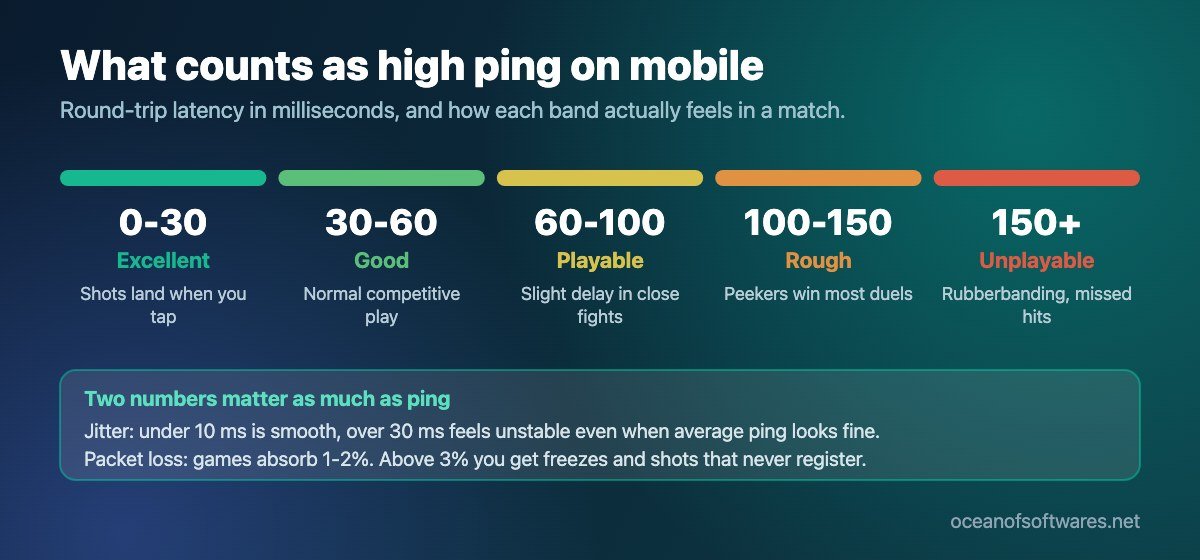
Mobile is held to a looser standard than PC, and the game studios say so themselves. Riot tells Wild Rift players to aim for 180 ms or less on mobile, which is roughly double what a PC shooter player would tolerate. Phones move, networks wobble, and the game compensates more than you would think.
So if your average sits at 70 ms, your ping is not your problem. Look at the other two numbers.
Ping, jitter, or packet loss: which one is hurting you?
These three get lumped together as “lag” and they feel completely different in a match.
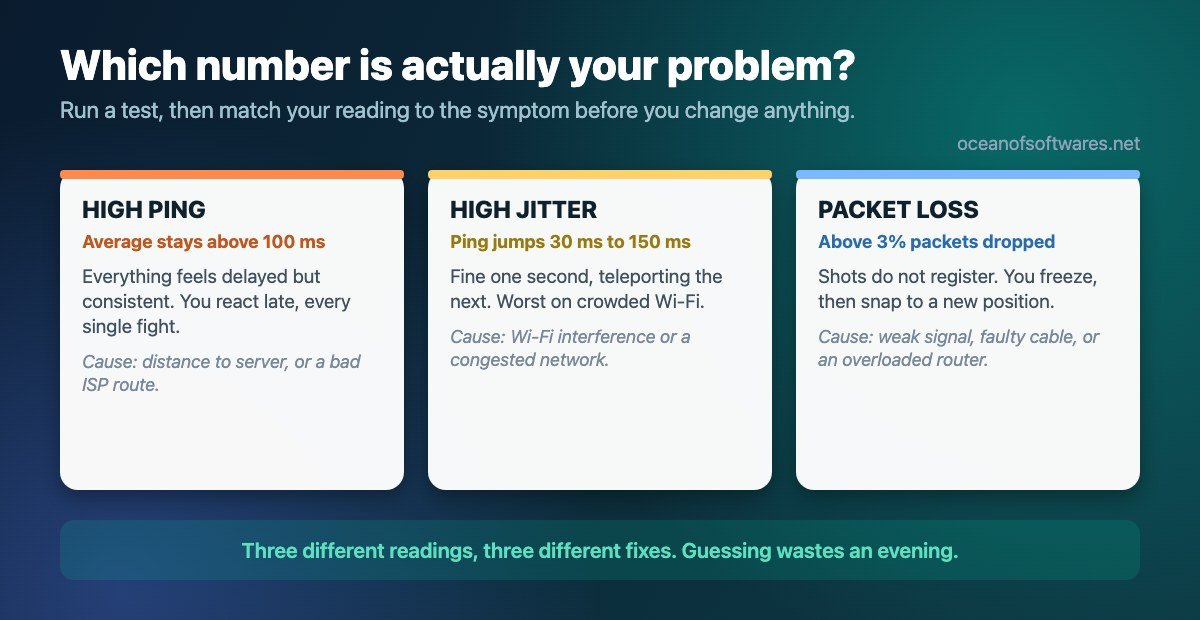
Jitter is the one most people miss. It measures how much your latency varies between packets, so if one packet takes 40 ms and the next takes 120 ms, your jitter is 80 ms. Your average might look fine while the game feels unplayable. Under 10 ms is smooth; above 30 ms is a real problem.
Packet loss is the brutal one. Games are built to absorb a little of it, but past about 3% you get frozen animations and shots that simply never happen.
Test your connection before you change anything
Open the PUBG Mobile Ping Tester on the phone you play on, over the same network you play on. No sign-up, nothing to install.
- Pick your region. Middle East, Asia (East), Southeast Asia, India, Europe, North America or South America. Choose the one matching the server you actually play.
- Choose a duration. Quick is 5 seconds, Standard is 10, Extended is 30. Use Extended if your lag comes in bursts, because a 5-second test will miss the spikes entirely.
- Tap Start Ping Test and leave the phone alone while it runs.
- Read all four numbers: average latency, jitter, packet loss, and the stability rating. The live graph matters more than the average, because a flat line at 90 ms plays better than a line bouncing between 20 and 200.
- Run it twice. Once on Wi-Fi, once on mobile data. The comparison tells you more than either result alone.
One honest limitation: the tool measures the route to a regional test endpoint, not to PUBG’s own game servers, which are not public. So treat the result as a reading of your connection’s health, not as the exact number the game will show. If your test is clean and the game still lags, the problem is further down the route or inside the game itself.
How to fix high ping in PUBG Mobile
Work down this list. The first four fix most cases, and they cost nothing.
- Match your server to where you live. Playing on a server two continents away adds latency that nothing else can undo. This is the single biggest lever you have.
- Move closer to the router, or switch to 5 GHz. Walls kill Wi-Fi signal. The 2.4 GHz band is crowded with everything from neighbours’ routers to microwaves, and that crowding shows up as jitter.
- Kill the downloads. Not just on your phone. A console updating or someone streaming on the same connection will spike your ping even though your own device looks idle.
- Turn off automatic network switching. Android’s “switch to mobile data automatically” setting will hop your connection mid-match when Wi-Fi dips, and every switch is a visible stutter. Wi-Fi advanced settings, turn it off.
- Disconnect Bluetooth you are not using. Bluetooth and 2.4 GHz Wi-Fi share a frequency band and genuinely interfere with each other.
- Drop your graphics one notch. This does not change your ping, but if your phone is thermal throttling, the delay you feel is your device, not your network.
- Restart the router, not just the phone. Consumer routers develop problems after weeks of uptime, and the fix is unglamorous but real.
- Test on mobile data. If 4G beats your home Wi-Fi, the problem is your local network, not your ISP’s route.
- Call your ISP with numbers. “The game lags” gets you a script. “Consistent 2% packet loss and 40 ms jitter to a Middle East endpoint, on a wired test, at 9 PM every night” gets you an engineer.
Do ping booster apps actually work?
Sometimes, for one specific problem, and most articles recommending them are advertisements for the app they recommend.
A booster routes your traffic through its own servers. If your ISP is taking a genuinely bad path to the game server, a better route can help. That is a real scenario, particularly in South Asia where international routing is often congested in the evenings.
But if your problem is a weak Wi-Fi signal in your bedroom, a booster adds a hop and makes things slightly worse. It cannot repair packet loss that happens between your phone and your own router. Test first; if your packet loss disappears when you stand next to the router, no app is going to fix the wall.
When it is your phone, not your internet
Here is a pattern worth knowing. Players regularly report one phone sitting at 160 ms or higher while another phone on the exact same Wi-Fi holds 20 to 30 ms. Same router, same plan, same room.
When that happens, stop debugging the network. Check for a battery saver or data saver mode throttling background traffic, a VPN or private DNS left switched on, a stale router DHCP lease, and whether the phone is quietly overheating. Reinstalling the game is a last resort because you lose your control layouts, so back those up first.
Frequently asked questions
What is a good ping for PUBG Mobile?
Under 60 ms is comfortable and under 30 ms is excellent. Between 60 and 100 ms is playable for casual matches. Above 150 ms you will lose close-range fights you should have won.
Why does my ping spike only during fights?
Usually it does not. Ping spikes at random, and you only notice during fights because that is when a 200 ms delay costs you something. Run an Extended test and watch the graph to see whether the spikes are constant.
Does more Mbps give lower ping?
No. Bandwidth and latency are different things. A 200 Mbps connection with a bad route will play worse than a 20 Mbps connection with a clean one. Upgrading your plan rarely fixes lag.
Is Wi-Fi or mobile data better for PUBG Mobile?
Usually Wi-Fi, because it is more stable. But a congested home network can easily be worse than a strong 4G signal. Test both on your own connection rather than trusting the general advice.
Why is my ping high on only one phone?
Check battery saver, data saver, VPN and private DNS settings on that device, and whether it is overheating. If one phone is slow on a network where others are fine, the device is the variable.
Can I lower ping without any app?
Yes, and you should try that first. Picking the right server, getting closer to the router, stopping background downloads and disabling automatic network switching fix most cases at no cost.
Final thoughts
Three separate faults share one name, so a fix list written for someone else usually misses yours. Spend two minutes measuring before you spend an evening changing settings, and you will usually find the culprit is boring: a crowded 2.4 GHz band, a download nobody mentioned, or a server region you picked once and forgot.
Run a ping test now, note your three numbers, and work from there.
Related reading