

Free Online Tools With No Account Required: 12 Picks That Work Instantly
You need to compress an image, merge two PDFs, or sketch a diagram. You open a site, and the first thing it asks for is your email address.
That friction is avoidable. A growing group of free online tools with no account required let you open a page and start working. No signup form, no verification email, no password to forget.
This guide covers 12 tools worth bookmarking, what each does best, and the catches to know about before you rely on them.
Why Choose Tools That Don’t Require an Account?
Skipping registration is more than a convenience. It changes how you work in a few practical ways.
- Speed: You go from need to result in seconds.
- Privacy: There is no profile tied to your files or habits. Several tools below process files locally in your browser, so your data never leaves your device.
- No inbox clutter: No marketing emails or “we miss you” reminders.
- Fewer passwords: One less credential to manage or leak.
The trade-off is that tools without accounts usually cannot save your work to the cloud. Plan to download your results before closing the tab.
Image Tools
1. Squoosh: Compress and Convert Images
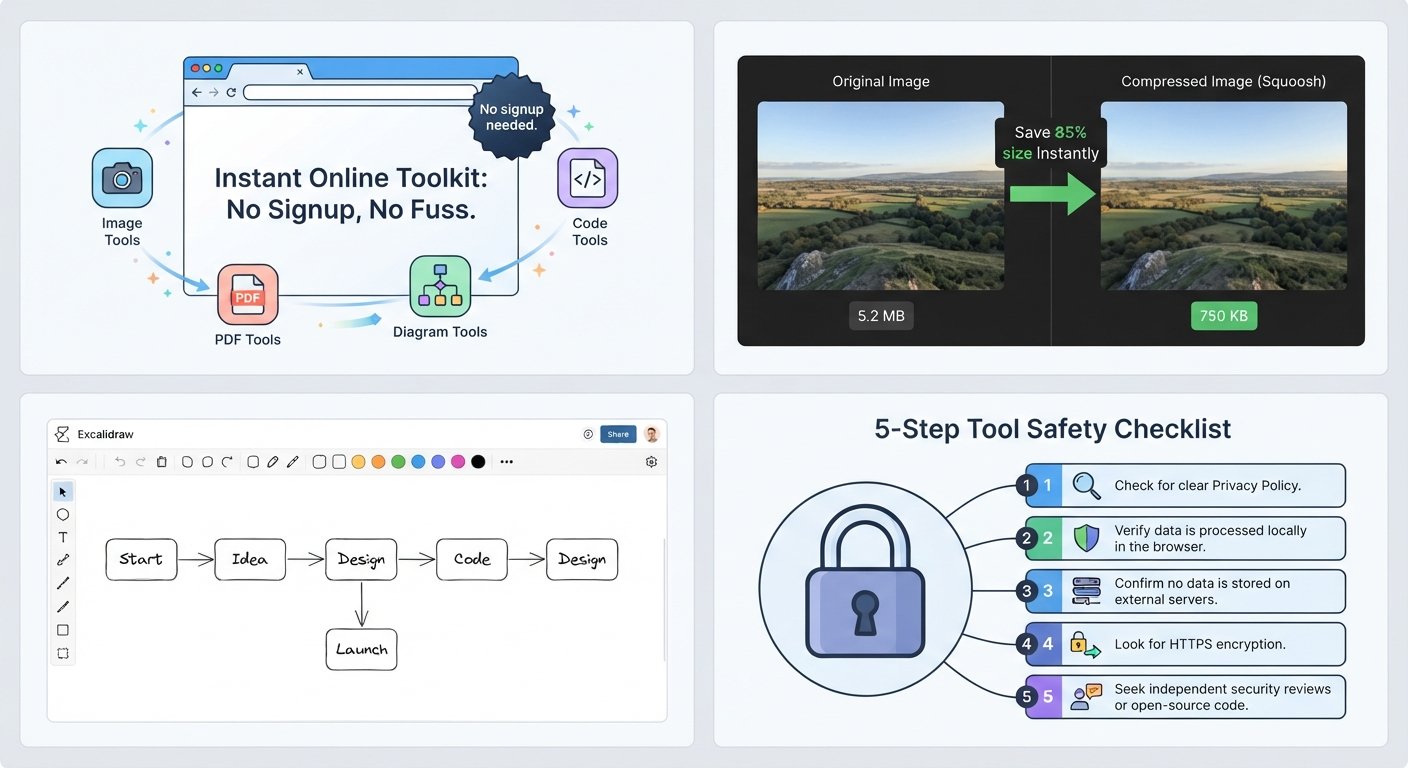
Squoosh is a browser-based image compressor built by Google Chrome Labs. You drop in an image, pick a format such as WebP, AVIF or MozJPEG, and compare the original and compressed versions side by side.
Best for: Shrinking images before uploading them to a website. Catch: It handles one image at a time, so large batches are slow.
2. Photopea: A Photoshop-Style Editor in Your Browser
Photopea opens PSD, XCF, Sketch and standard image files and offers layers, masks and filters. It runs in the browser and is supported by ads.
Best for: Quick edits when you don’t have Photoshop installed. Catch: Ads appear unless you pay to remove them, and complex files can feel heavy on older laptops.
3. TinyPNG: Fast PNG and JPEG Compression
TinyPNG shrinks PNG and JPEG files with very little visible quality loss. Drag the files in and download the smaller versions.
Best for: Bulk compression of web images. Catch: The free web version limits how many files and how large each file can be per batch.
PDF Tools
4. PDF24 Tools: Merge, Split and Compress PDFs
PDF24 offers a wide set of PDF utilities, including merge, split, compress, rotate and convert, available from the website without registering.
Best for: Everyday PDF jobs like combining scanned pages. Catch: Online PDF tools upload your file to a server. For confidential documents, use an offline option instead.
Tip: Before uploading any sensitive document to a web tool, check the site’s privacy statement to see how long files are stored.
Design and Diagramming Tools
5. Excalidraw: A Virtual Whiteboard
Excalidraw gives you a clean canvas for hand-drawn-style diagrams, wireframes and quick sketches. You can export to PNG or SVG, or share a link for live collaboration.
Best for: Brainstorming and explaining ideas visually. Catch: It is intentionally simple, so it is not suited to polished final artwork.
6. diagrams.net (draw.io): Flowcharts and Technical Diagrams
diagrams.net is a free diagramming app for flowcharts, org charts and network diagrams. It lets you save files to your own device instead of an online account.
Best for: Process maps and system diagrams. Catch: You manage your own file storage, so back up important diagrams.
Developer Tools
7. CyberChef: The “Cyber Swiss Army Knife”
CyberChef, created by the UK’s GCHQ, lets you chain operations such as Base64 decoding, hashing, and format conversion in the browser. Processing happens on your device.
Best for: Encoding, decoding and data cleanup. Catch: The interface has a learning curve for first-time users.
8. Regex101: Test and Debug Regular Expressions
Regex101 explains each part of your regular expression and highlights matches in real time. It supports several regex flavors, including PCRE and JavaScript.
Best for: Building and debugging patterns. Catch: Saving patterns to share is optional, but an account is only needed for extra library features.
9. A Browser-Based JSON Formatter
Many free JSON formatter and validator sites let you paste messy JSON and get readable, indented output along with error messages. Pick one that states it processes data client-side.
Best for: Checking API responses and config files. Catch: Avoid pasting API keys or personal data into any site you have not vetted.
Productivity and Research Tools
10. Pomofocus: A Simple Pomodoro Timer
Pomofocus provides a clean Pomodoro timer with a basic task list. It works the moment the page loads.
Best for: Structured focus sessions. Catch: Syncing across devices requires signing in, but the core timer does not.
11. The Wayback Machine: Browse Archived Websites
The Internet Archive’s Wayback Machine lets you view saved snapshots of web pages without logging in. Paste a URL and pick a date.
Best for: Recovering old content and checking how a page used to look. Catch: Not every page or date has been archived.
12. Online Calculators and Converters
Unit converters, percentage calculators and currency tools are some of the oldest examples of free online tools with no account required. Choose reputable sites and cross-check exchange rates against an official source for anything financial.
Best for: Quick one-off calculations. Catch: Quality varies widely, so test with a known answer first.
How to Judge a Tool Before You Trust It
Not every no-signup site deserves your files. Run through this checklist:
- Read the privacy policy. Look for how long uploads are stored and whether they are deleted.
- Check for local processing. Tools that work in your browser keep data on your device.
- Watch the permissions. A simple tool should not ask to access your camera, contacts or location.
- Look for HTTPS. Never upload documents to a site without it.
- Test with a dummy file first. Confirm the output quality before using real work.
Comparison at a Glance
| Tool | Category | Processes Locally | Free-Tier Limits |
|---|---|---|---|
| Squoosh | Images | Yes | One image at a time |
| Photopea | Image editing | Mostly in-browser | Ads |
| TinyPNG | Images | No (server upload) | File count and size caps |
| PDF24 Tools | PDFs | Varies by tool | Few |
| Excalidraw | Diagrams | Yes | Simple feature set |
| diagrams.net | Diagrams | Yes | Manual file storage |
| CyberChef | Developer | Yes | Learning curve |
| Regex101 | Developer | Server-assisted | Account-only extras |
| Pomofocus | Productivity | Yes | No cross-device sync |
| Wayback Machine | Research | N/A | Incomplete archives |
Check each site’s current terms, since features and limits change.
FAQ
Are free online tools with no account required safe to use?
Many are, but safety depends on the site. Prefer tools that process files in your browser, use HTTPS, and publish a clear privacy policy. Avoid uploading passwords, ID documents or confidential contracts.
How do these sites make money without accounts?
Common models include ads, optional paid upgrades for higher limits or extra features, donations, and sponsorship by a larger company or organization.
Will my files be saved if I close the tab?
Usually not. Most no-account tools keep nothing between sessions, so download your result before leaving.
Do I need to install anything?
No. All the tools above run in a standard modern browser on desktop, and many also work on mobile.
What is the best no-signup tool for beginners?
Squoosh for images and Excalidraw for diagrams are two of the easiest, because they have minimal interfaces and immediate results.